Help
Introduction
The Information Gateway Online Reporter (IGOR) is a system which enables financial institutions to submit to the States of Guernsey Revenue Service the data required under the obligations placed upon them by exchange of information legislation.
IGOR is comprised of a web portal which financial institutions can log into, and an application programming interface (API) with which they can integrate their systems. This document describes the web portal.
Browser requirements
Please ensure you are using an up to date web browser. Internet Explorer 9 or above, or the latest versions of Chrome or Firefox are required.
URL
Enter the following link in your web browser https://igor.gov.gg/
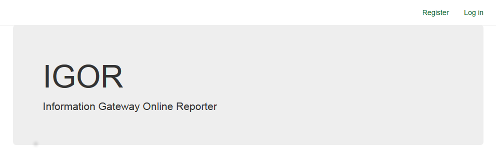
Registration
1. Register as a user of the system
-
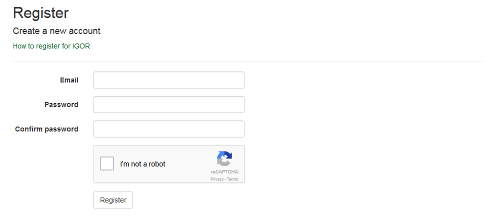
Enter your email address, and enter a password. You will be asked to complete a CAPTCHA.
-
You will receive an email with a link to click to confirm your email address.

2. Log in
-
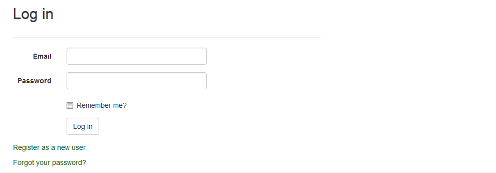
Enter your email address and password in the IGOR web site
3. Add an organisation
You use organisations to group your financial institutions.
-
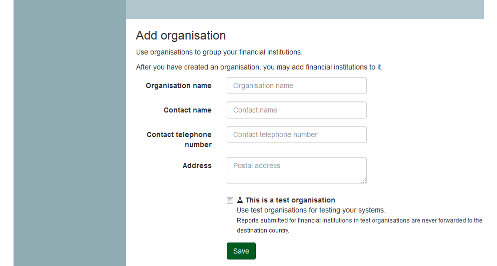
To create an organisation, give it a name and enter a contact name, contact telephone number and postal address.
-
If wish you can create test organisations. Use test organisations for testing your systems. Reports submitted in test organisations are never forwarded to the destination country.
-
Test organisations, and financial institutions in test organisations, are shown with this symbol next to their name.
-
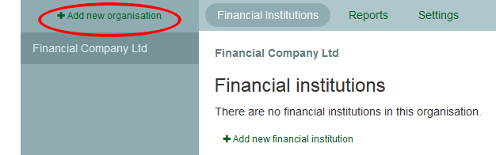
To create additional organisations, click on +Add new organisation
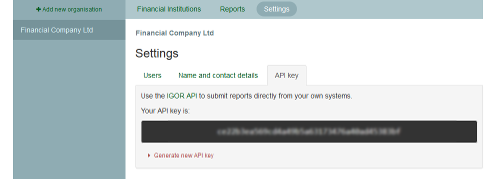
Under Settings your will find your API key. For report submission using the API, all financial institutions within an organisation share the same API key.
4. Add one or more financial institutions
-
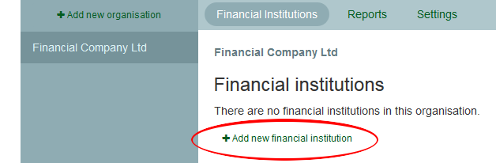
Click on + Add new financial institution
-
Select the type of reports the financial institution will submit, and search for it by GIIN or name (if it will be submitting FATCA reports), or type its name (if it will not be submitting FATCA reports).
-
Press Save
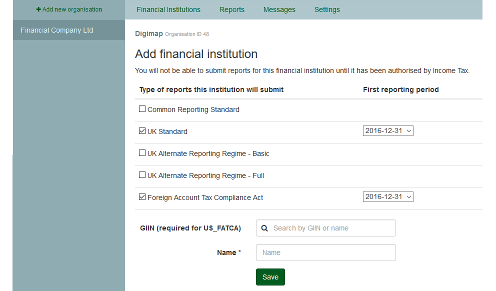
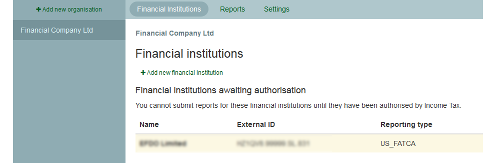
You will be unable to submit reports for a newly added financial institution until it has been authorised by Revenue Service.
Financial institutions in test organisations can be used immediatley without authorisation by Revenue Service, as reports submitted for these financial institutions are never forwarded to the destination country.
Submitting reports
You may submit reports using the IGOR website using a web browser, or directly from your own systems using the API. Both methods report detailed validation errors, should the report you submit be invalid.
A log of error messages from previously submitted invalid reports, as well as a log of the full content of successful submissions, is available on the IGOR website.
Submitting reports using the API
Under Settings you will find your API key. For report submission using the API, all financial institutions within an organisation share the same API key.
See the API documentation for information on integrating the IGOR API with your own systems.
Submitting reports using the web portal
-
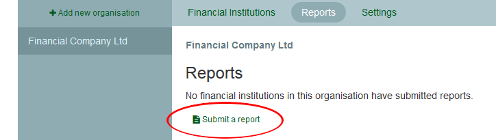
Under Reports, click on Submit a report.
-
Select the type of report you are submitting and upload your XML file.
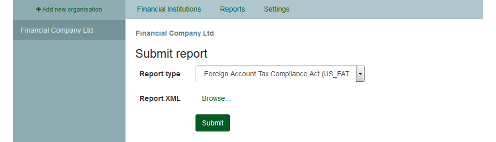
If your XML file is valid, confirmation of submission will be displayed, along with a report submission ID and a summary of the report contents.

If your XML file is not valid, detailed error messages will be shown to enable to you resolve the problems and resubmit the report.

Viewing submitted reports
A log of error messages from previously submitted invalid reports, as well as a log of the full content of successful submissions, is available.
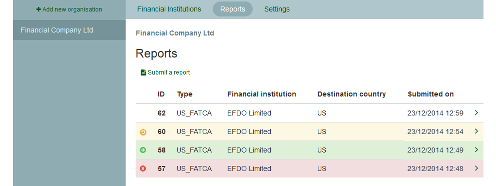
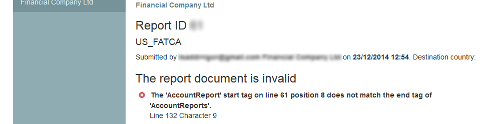
- Invalid reports are highlighted in red.
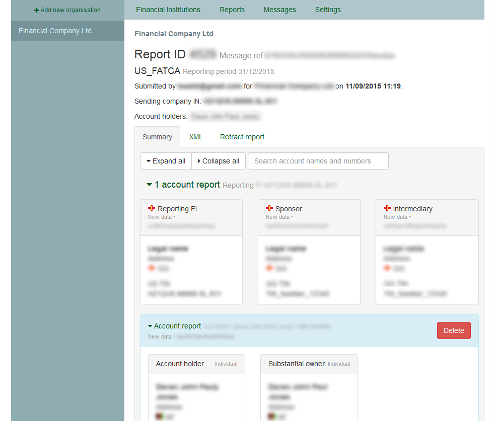
- Valid reports which have not yet been forwarded show on white.
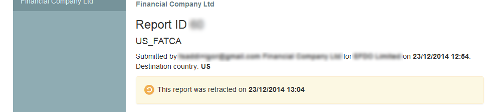
- Valid reports which have been retracted (see below) are highlighted in yellow.
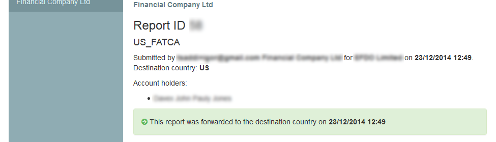
- Valid reports which have been forwarded to the destination country are highlighted in green.
-
Clicking on an invalid report will show the detailed error messages for the report.
-
Clicking on a valid report will show a summary of the report contents along with the submitted XML. You can also retract the report, or delete individual account reports (see below). You may search on account names and numbers to view a specific account report.
-
Clicking on a retracted report will show the date and time at which the report was retracted.
-
Clicking on a report which has been forwarded to the destination country will show the date and time at which it was forwarded.
Retracting reports
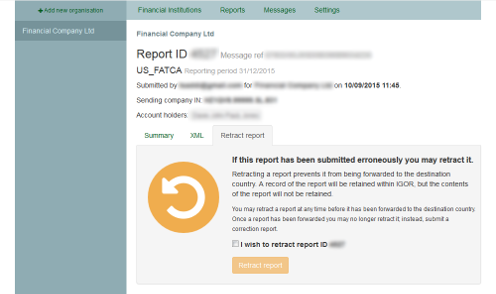
If a report has been submitted erroneously you may retract it.
Retracting a report prevents it from being forwarded to the destination country. A record of the report will be retained within IGOR, but the contents of the report will not be retained.
- You may retract a report at any time until the reporting deadline.
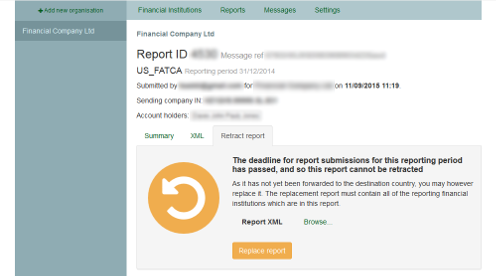
- After the reporting deadline, but before the report has been forwarded to the destination country, you may no longer retract it but you may replace it. The replacement report must contain all of the reporting financial institutions which are in the original report. Replacing a report has the effect of retracting the original report and submitting its replacement in a single step.
- Once a report has been forwarded you may no longer retract or replace it; instead, submit a correction report. Correction reports are submitted in the same way as standard reports; the format of the report XML document for a correction report is described in the standards for each reporting type.
To retract a report:
- Tick the checkbox to confirm that you wish to retract the report.
- Press the yellow button Retract report.
To replace a report:
- Select your replacement XML file
- Press the yellow button Replace report.
Deleting account reports
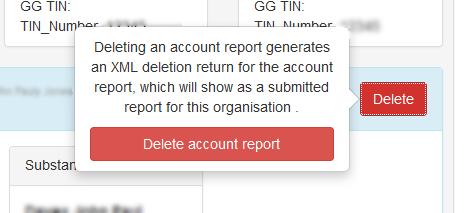
While viewing a report you may delete individual account reports. Deleting an account report generates an XML deletion return for the account report, which will show as a submitted report for your organisation.
To delete an account report:
- Click the red Delete button on the account report you wish to delete.
- To confirm your intention, click the red Delete account report button in the popup which appears.
Viewing the outcome of corrections and deletions
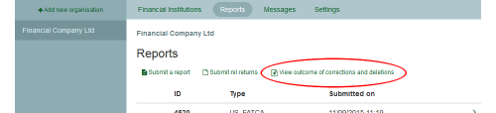
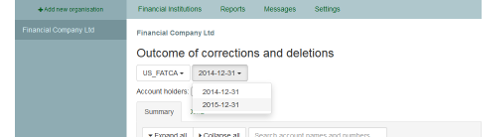
You may view the outcome of all correction and deletion reports for any reporting type and reporting period for which you have submitted reports.
To view the outcome of corrections and deletions:
-
Under Reports, click View outcome of corrections and deletions.
-
Select the reporting type and period you wish to view the outcome of corrections for.
Managing organisations
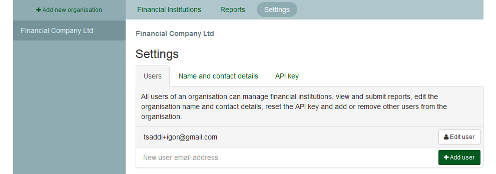
Under Settings you can manage the users for your organisation, its name and contact details, and its API key.
Adding and removing users
All users of an organisation can manage financial institutions, view and submit reports, edit the organisation name and contact details, reset the API key and add or remove other users from the organisation.
To add a new user:
- Enter the new users email address, and press +Add user.
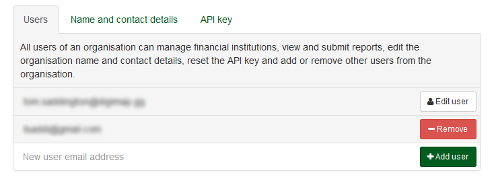
If the new user is already registered with IGOR they will be granted access to the organisation immediately, and notified by email.
If the new user is not already registered with IGOR they will be sent an email with a link to click to confirm their email address. They will be granted access to the organisation once they have confirmed their email address.
To remove a user:
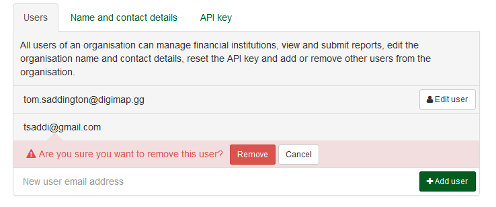
- Press the -Remove user button next to the email address of the user you wish to remove.
- Press the red Remove button to confirm.
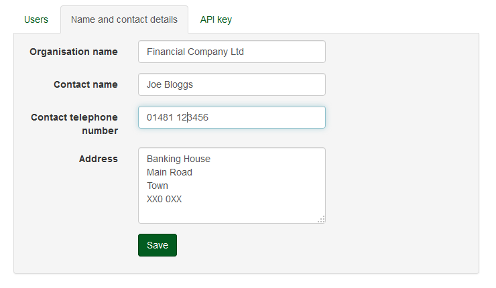
Modifying organisation name and contact details
- Enter the new details.
- Press Save.
Generating a new API key
You may generate a new API key at any time
Warning! Generating a new API key will revoke access for any systems using the current API key. These systems will not be able to use the IGOR API until they are updated with the new API key.
To generate a new API key:
- Press ▶ Generate new API key.
- Tick the checkbox to confirm that you wish to generate a new key.
- Press the red button Generate new API key.
- Update your systems with the new API key.
